Showing posts with label QTP - Scripts. Show all posts

Tuesday, 5 April 2011

How to set/get system time and date?

QTP allows running different types of test. And sometimes, it needs perform time and date manipulations on a computer. In this article, I will show and explain - how to get system time/date and change them.

Actually, today's lecture consists of two questions:
  1. How to get system time and date?
  2. How to set system time and date?
Let start training right now :)
So, the first section is:


How to get system time and date?


Actually, this is not difficult task! Use the following functions:
  • Now - function returns the current date and time according to the setting of your computer's system date and time.
  • Date - function returns the current system date.
  • Time - function returns a Variant of subtype Date indicating the current system time.
So, the code is very simple. I provide it with a screen shot containing results:


Well, let's deal with the second section:


How to set system time and date?

For that, I will use simple DOS commands:
  • time - this command displays or sets the system time:
    To change the time, pass it as a parameter to time command. See the above screen shot as an example.

  • date - this command displays or sets the system date:
    To change the date, pass it as a parameter to date command. See the above screen shot as an example for date manipulations :)
Now, I will combine all the above VBScript functions (Now, Date, Time) and DOC commands (time and date):

As you can see, initial date and time were '26.10.2007 22:45:10'. Then I added 3 days and 2 hours to initial date & time. The result of addition is - '30.10.2007 0:45:10'.

By the way, could you guess, why the result day is 30th, not 29th? :) To answer, please pay attention that we added 2 hours too :)

The last step - running of time and date commands from command line. I used Run method of WScript.Shell object.


So, as you can see - date and time manipulation is easy enough.

Source

Monday, 4 April 2011

How to minimize/maximize QTP window?

This is very useful feature - minimize QTP window before script execution. It allows to observe a desktop or an application under test wholly.

I will show and describe how to minimize (or maximize) QTP window programmatically - i.e. from QTP script.
Also, provided approach can be applied to minimize (maximize) any required window - Browser, Notepad, MS Word or Excel, and so on.


There are two ways to minimize QTP window:

  1. Using Minimize method of Window object
  2. Using QTP Application object - QuickTest.Application


These methods will contain several lines only and I hope that my explanations will be understandable.
So, let's explore!

  1. Using Minimize method of Window object
    You can use Minimize method of Window object to minimize QTP window (or any other).

    Let's see two cases - when a window is located in Object Repository (OR) and widows is not located in OR.

    • If a window is located in Object Repository (OR), then minimizing can be performed using the following code:

      1. hWnd = Browser("browser_name").GetROProperty("hwnd")
      2. Window("hwnd:=" & hWnd).Minimize


      In first line, we get window handle (hWnd) of Browser object . And then we pass this handle to Window object and minimize it.
      Obviously, that we can use the same approach to maximize window (use method):

      1. hWnd = Browser("browser_name").GetROProperty("hwnd")
      2. Window("hwnd:=" & hWnd).Maximize


    • If a window is not located in Object Repository (OR), then we can use some run-time object properties and descriptive programming to identify a window. For example, we can use window title.

      Please, see a screen shot of QTP window:QTP window title has a prefix - 'QuickTest Professional - ' followed by test name. I will use this prefix ('QuickTest Professional - ') with a mask:

      1. sTitleMask = "QuickTest Professional - .*"
      2. Window("regexpwndtitle:=" & sTitleMask).Minimize


      I use Regular Expressions.
      Mask
      ".*" means "match any characters zero or more times". So, this mask will identify QTP window, and this code will minimize it.

      The same approach can be applied to Browser.

      See a screen shot of this browser:

      In this case, browser has prefix 'Google - '. So, I will use it as the mask:

      1. sTitleMask = "Google - .*"
      2. Browser("regexpwndtitle:=" & sTitleMask).GetROProperty("hwnd")
      3. Window("hwnd:=" & hWnd).Minimize


      Well, you can use any approach you like. All of them work and minimize/maximize windows correctly.


  2. Using QTP Application object - QuickTest.Application
    Since this approach uses QuickTest Automation Object Model, it can be applied to QTP window only.

    There is a procedure, which minimizes QTP window:


    1. Sub MinimizeQTPWindow ()
    2. Set qtApp = getObject("","QuickTest.Application")
    3. qtApp.WindowState = "Minimized"
    4. Set qtApp = Nothing
    5. End Sub


    To minimize QTP window, just execute MinimizeQTPWindow () procedure:

    1. MinimizeQTPWindow


    For detailed information, I recommend to Read QTP Help > QuickTest Automation Object Model Reference.

Since QuickTest Automation Object Model does not use UI, second approach is more stable.
But first method is more flexible - it allows working with browsers and stand-alone windows.

In any case, I recommend to read and explore both approaches.

Source

Sunday, 3 April 2011

How to capture tool tip of link?

How to capture a tool tip text in QTP?

For example, how to get tool tip ('Go to My Yahoo!') from the yahoo page:
Tooltip on Yahoo page
This QTP tutorial shows and explains How to get tool tip in QuickTest Professional.

Actually, this is not a difficult task. The steps are:
  1. Place mouse cursor over the link
  2. Wait for tool tip
  3. Get text of shown tool tip

This QTP script captures a text of a tool tip:
' Place mouse cursor over the link
Browser("Yahoo!").Page("Yahoo!").WebElement("text:=My Yahoo!").FireEvent "onmouseover"
wait 1
' Grab tooltip
ToolTip = Window("nativeclass:=tooltips_class32").GetROProperty("text")

Please, pay attention on details:
  1. We use FireEvent("onmouseover") to simulate mouse placing over the link
  2. Function wait(1) waits 1 second for a tool tip
  3. To get tool tip text, we use:
    Window("nativeclass:=tooltips_class32").GetROProperty("text")

Let's run our code and compare captured tool tip with expected ('Go to My Yahoo!'):
As you can see, above QTP script captures correct text of a Tool tip.
I hope, you will add this script to your QTP functions library.

Source

Saturday, 2 April 2011

Capturing tool tips of images

Now, I'm going to show how to show how to capture tool tips of images located on a Web page.

Actually, the solution is simple.
To capture a tool tip of an image, we can get value of "alt" Run-time Object property with GetROProperty("alt") function:
Browser("brw").Page("pg").GetROProperty("alt")

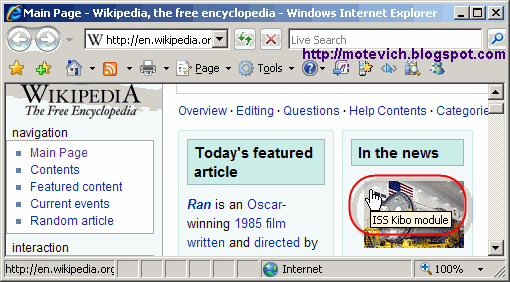
Let's verify this code in practice. For example, let's check tooltips from Wikipedia Main page:

I've prepared QTP script, which gets all image from this page and checks their tooltips ("alt" property):
Dim descImage, listImages, attrAltText, attrSrcText

Browser("Main Page - Wikipedia,").Sync
Browser("Main Page - Wikipedia,").Page("Main Page - Wikipedia,").Sync

' Create description for all images on a Web page.
' For that we use "html tag" property and its value "IMG"
Set descImage = Description.Create
descImage("html tag").value = "IMG"

' Get all images which match the above description
Set listImages = Browser("Main Page - Wikipedia,").Page("Main Page - Wikipedia,").ChildObjects(descImage)

' Check tool tips of images
For i = 0 To listImages.Count - 1
attrAltText = listImages(i).GetROProperty("alt")
attrSrcText = listImages(i).GetROProperty("src")

If attrAltText <> "" Then
MsgBox "Image src: " & attrSrcText & vbNewLine & "Tool tip: " & attrAltText
End If
Next

When I run this code in QTP, it shows all images containing non-empty tool tip:
(click the image to enlarge it)

The same message boxes will be shown for others images on a Web page.

So, our solution is simple - use GetROProperty("alt") function to get tool tip of image.
As you can see - it works correctly.

SOURCE

How to get current iteration number of QTP script?

QTP test can run several iterations.
By default, when you run a test with global QTP Data Table parameters, QuickTest runs the test for each row in the Data Table, using the parameters you specified.

For example, the following global QTP Data Table contains 3 rows:

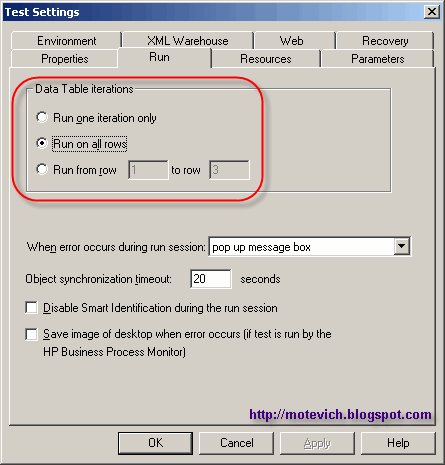
The iteration number of QTP test can be specified in 'File/Settings.../Test Settings dialog', 'Run' tab:

If we run our QTP test with above settings (global DataTable & 'Run' tab), the test will pass 3 iteration.
So, the question is How to determine the current iteration number withing QTP script?

Answer: We can use the value of "TestIteration" environment variable - Environment("TestIteration").

This is a sample QTP script I use to demonstrate Environment("TestIteration"):
str = "Current QTP iteration: " & Environment("TestIteration") & vbNewLine & _
"Param1: " & DataTable("Param1", dtGlobalSheet) & vbNewLine & _
"Param2: " & DataTable("Param2", dtGlobalSheet)

MsgBox str
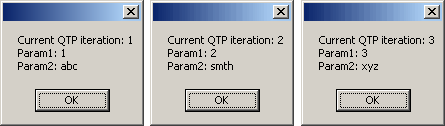
And the result of above QTP script is:

As you can see, QuickTest Professional script works correctly.
You can use this approach to determine the current iteration number of running QTP script.

SOURCE
Apex Monkeys © 2008. Design by :Yanku Templates Sponsored by: Tutorial87 Commentcute Software blogs Computers Blogs